Store Access
Apple Developer Account Access
To enable autonomous development and distribution, access must be granted in App Store Connect with sufficient permissions to manage applications and signing assets.
This configuration allows the iOS workflow to proceed without manual certificate exchanges or operational blockers.
Granting Access in App Store Connect
Step 1: Go to App Store Connect
- Visit App Store Connect
- Sign in with an account that has permission to manage users
Step 2: Navigate to Users and Access
- Open Users and Access
- Click the Add (+) button to create a new user
Step 3: Provide Permissions
Permissions will be assigned to the email address provided by MeetingDoctors.
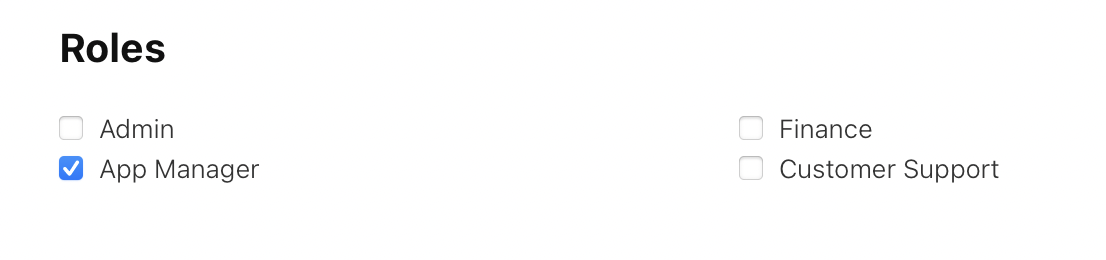
Configure the user with the following settings:
- Role: App Manager
- Additional Permissions:
- Access to Certificates, Identifiers & Profiles
- Access to Cloud Managed Distribution Certificate
- Create apps

This configuration grants the minimum required access to operate autonomously.
Restricted Access Scenario
If the required permissions are not granted, autonomous operation is not possible.
In this case, all signing assets must be provided externally.
Required Assets in Restricted Mode
The following items must be created and shared manually:
- Distribution certificate (
.p12) - Development certificate (
.p12) - APNs authentication key (
.p8) - Associated provisioning profiles for each environment
These assets must remain valid, updated, and aligned with the app’s configuration.
Operating in restricted access mode introduces additional coordination overhead, including:
- Certificate expiration management
- Manual regeneration of provisioning profiles
- Dependency on external updates for signing changes
- Increased likelihood of build or distribution blockers