Store Access
Step 1: Create an App in Google Play Console
-
Go to Google Play Console
- Visit Google Play Console
- Log in with your Google account.
-
Create a New App
- Navigate to "All Apps" and click on "Create App".
- Fill in the required details (app name, default language, etc.). Note that the name can be edited later.
Step 2: Grant Permissions Google Play Console
-
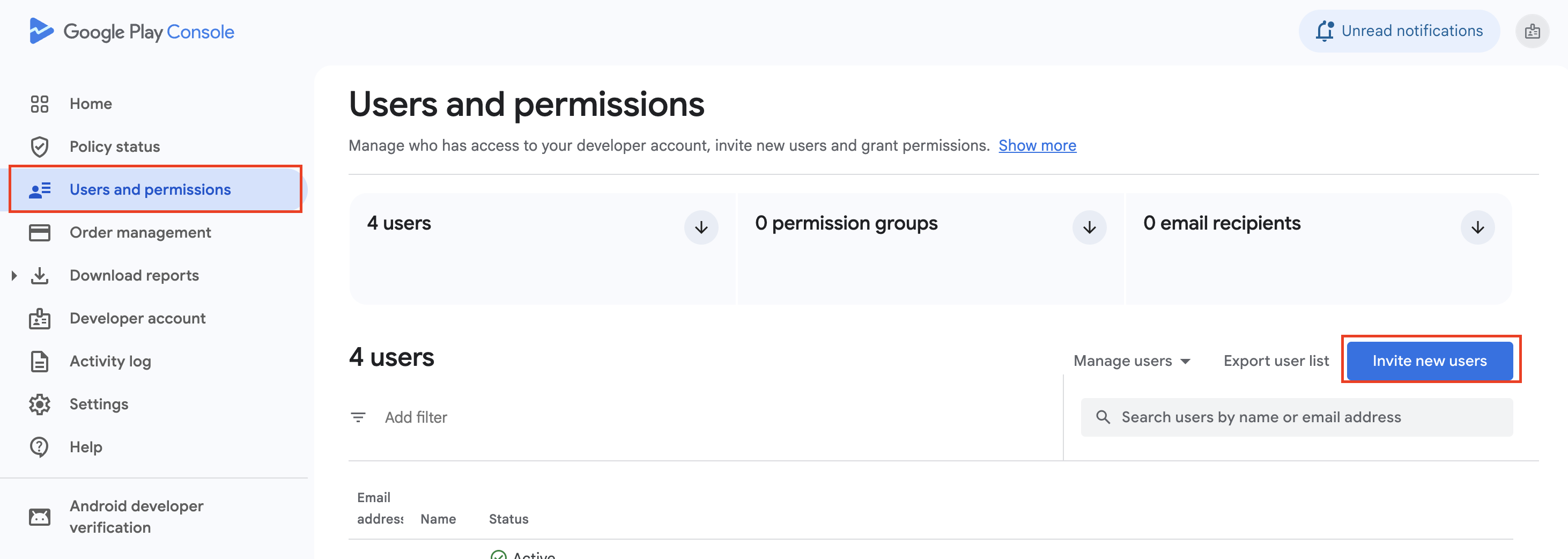
Go to Users and Permissions
- Visit Google Play Console
- Navigate to Users and permissions on the left sidebar.
- Click on the Invite new users button.
-
Provide Permissions
- Permissions will be given to the email provided by MeetingDoctors
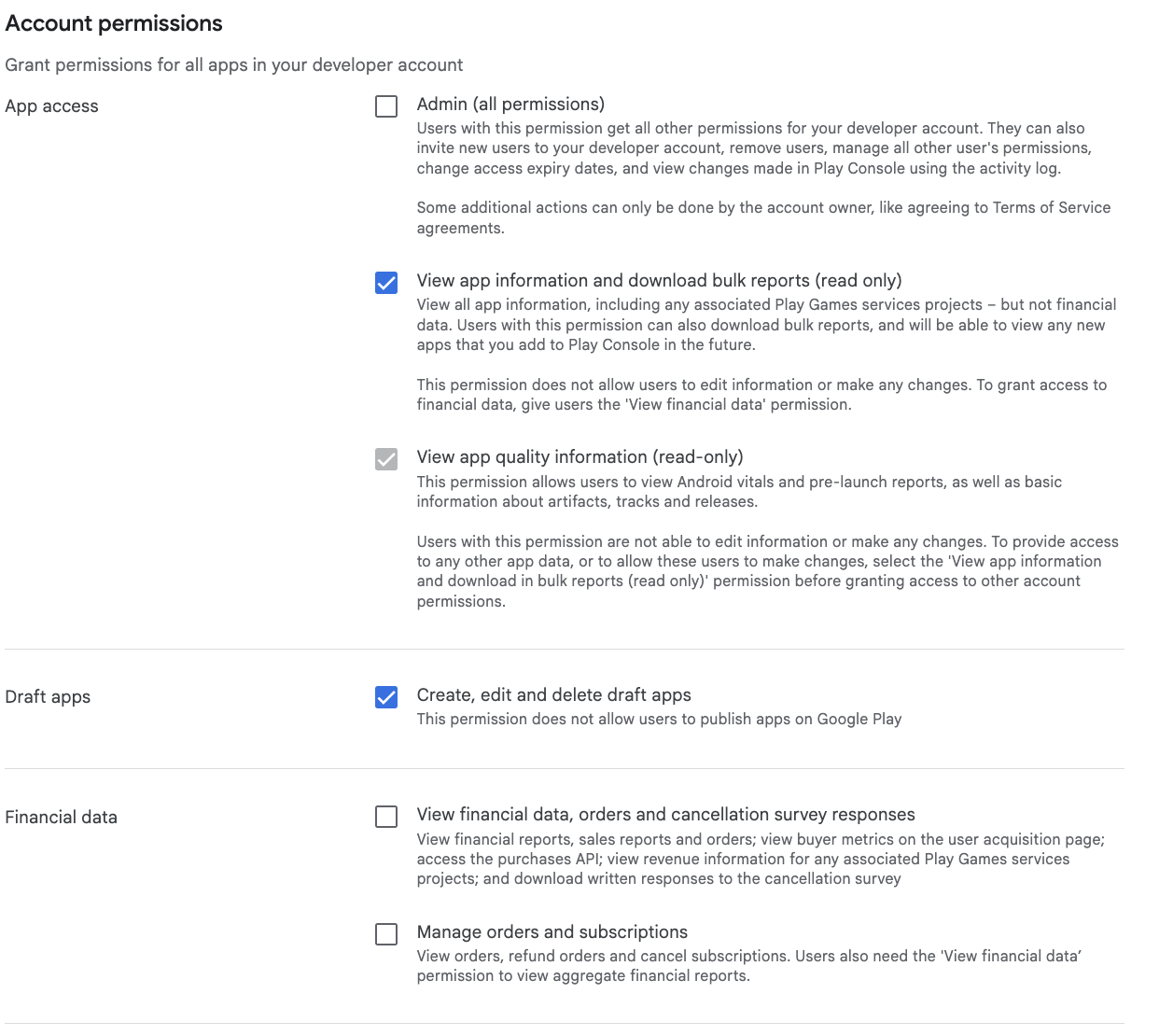
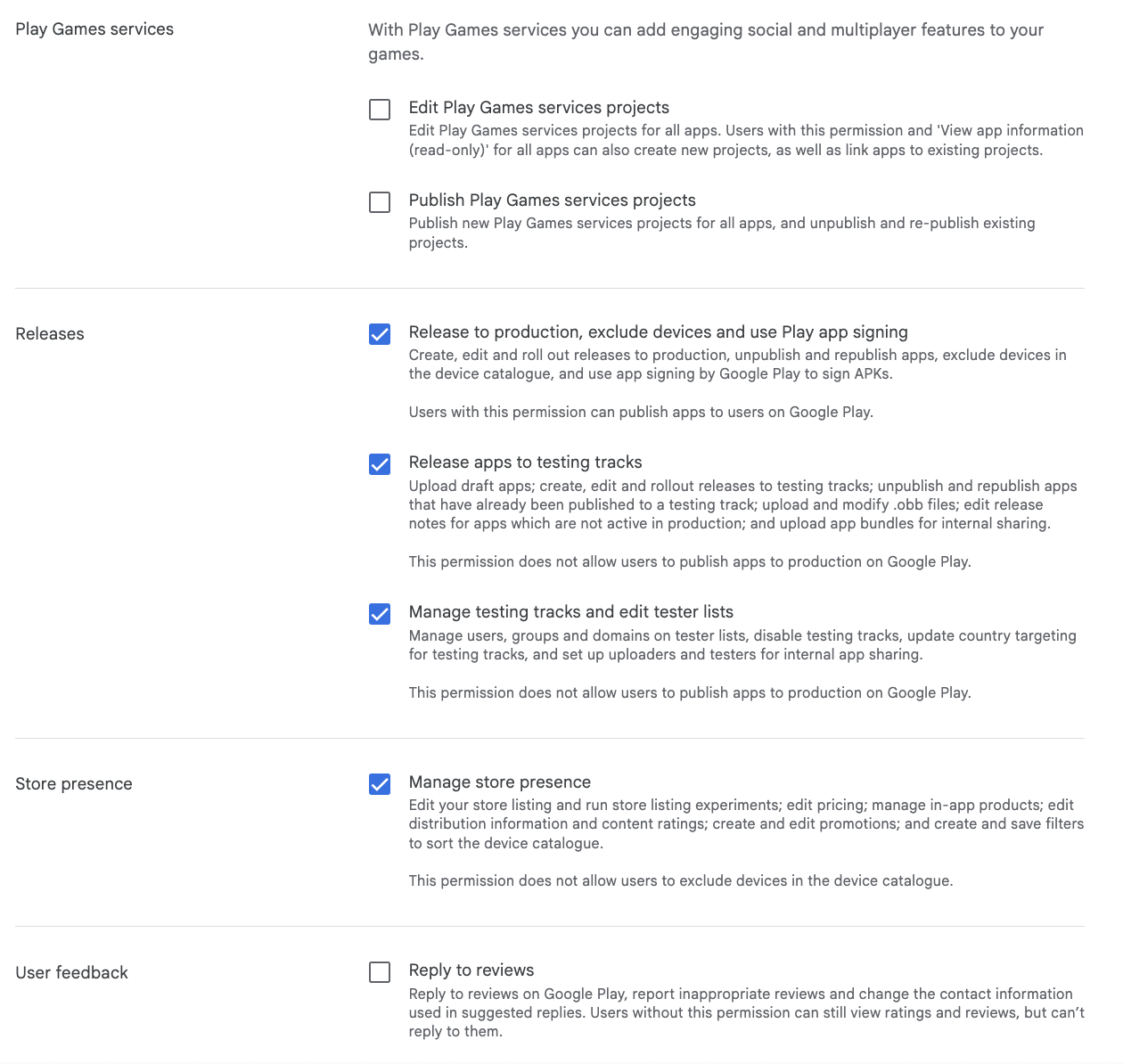
- Role: Admin (or minimum required privileges as listed below)
- Privileges:
- App permissions: Select the app created and provide necessary permissions.
- Recommended privileges: Admin or specifically:
- View app information
- Manage production and testing releases
- Manage store presence
- Manage app access
Conclusion
By following these steps, you will successfully create a new app in the Google Play Console and grant the necessary permissions to manage and publish the app. This setup ensures efficient management and publication of the app on Google Play.
For further details and support, visit the Play Console Help Center